Free Software to View What Softwares Run With Computer Startup

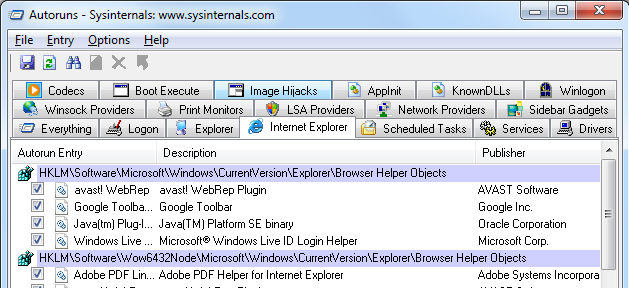
AutoRuns is a free software utility by SysInternals (Bought by Microsoft) that can tell you in details about the programs, services, Drivers, WinSock providers, Explorer addons, Scheduled Tasks and lots more. This software utility can be really helpful when you want to find out specific software or plugin that you think might be giving issues to your computer. Just uncheck the corresponding AutoRun Entry and that’s it, that particular software will be disabled.
Startup Programs

Find out Startup Programs using AutoRuns

The MsConfig is provided inbuilt by Microsoft and yes it also tells about startup programs, services, boot options and more. However this free software can be also helpful if you do know what specific program you want to find out and disable. Have a close look at the above screenshot to know what all your computer might be running.
AutoPlay Windows 7

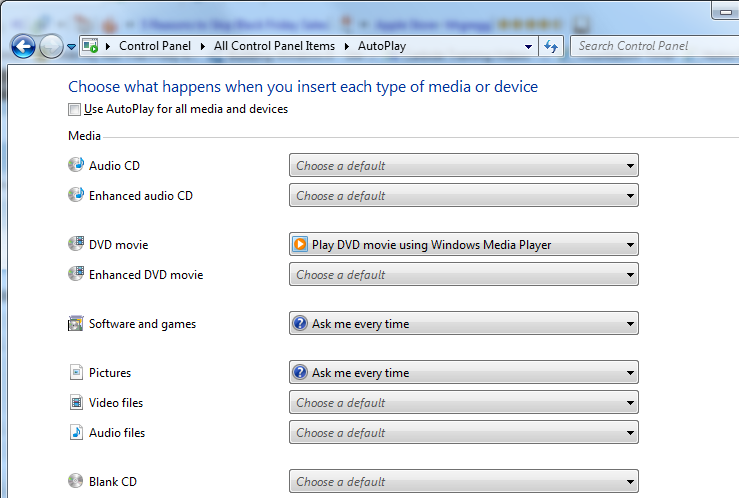
Windows 7 allow to control autoplay of various removable media such as dvd, games, movies, usb drives , etc in a very fine way. Have a look at the given below control panel option to control autoplay feature in Windows 7.

AutoPlay Windows 7

Control AutoPlay in Windows 7

Whether you need to define autoplay option for Blank CD or Pictures CD or Audio Files or anything else, Windows 7 allows fine control over AutoPlay for almost everythin really easily. No need to struggle with Registry or Group Policy Editor, just select how you want the AutoPlay to happen and all is good.

Multiple Monitors in Windows

You can use Multiple Monitors with your Windows Operating System. In order to connect multiple monitors to a single CPU, you would need two things. The first is hardware and second is software requirements. The number of monitor which can be connected to a computer, depends on how many monitors your graphics card support. In case you do not have an extra graphics card, you would need to buy an appropriate graphics card. Dual Monitor Graphics card are relatively cheaper and can be added to the CPU in the PCI or PCI Express graphics card. Selection of graphics card is one difficult thing and must be done really carefully.

Windows 7  & Windows 8 provides the requires software support and using the multiple monitors is really easy. Windows allows to duplicate or extend the the desktop to other monitors. There are dual monitor software applications that can really help you to manage and make the most out of your dual or multiple monitors.

Uninstall Software from Windows

Software uninstallation is about removing a software already installed from your computer. Many software applications provide a uninstall menu in programs menu and many programs do not add a uninstall icon in start menu. In order to uninstall a program with no uninstall icon in programs menu, open up control panel and look for Programs and Features icon in the control panel in Windows 7 or Windows 8.

Locate the software by looking for the software name and click on the uninstall button or just double click on the software name. This will open up a uninstall wizard and will guide you to the software uninstallation. Do make sure that the program you wish to uninstall is not running. Once you complete the uninstall wizard , the software will be uninstalled. A Computer reebot might be required to complete the software uninstallation.

Mouse Clicks in Windows

Windows Operating System and applications installed on Windows can be operated using Keyboard or Mouse. The Mouse has typically two or three buttons named as Left Mouse Button , Right Mouse Button and Middle Mouse Button. The Middle mouse button may have a scroller to scroll pages vertically. The Left Mouse button when pressed and released on time is typically called as Left Click, similarly right click can be performed by pressing and releasing right mouse button and releasing it one time.

Apart from Single Clicks, many applications and Windows work using Double Click method. A Double Click is performed by doing two left clicks really fast. Yes the configuration changes to click mouse can be controlled using control panel. The Mouse Applet of control panel also allows to control the speed of the mouse cursor in accordance with actual physical movement of the mouse.

Windows also allows to change mouse cursor and even display trails wherever mouse cursor moves. Left click is normally used to select an icon, file or something else. However Right click is normally used to display a menu popularly known as Context Menu. The Context Menu is displayed using Right Click and can be really useful. When working on Windows, Left Click Right Click and Double Clicks makes mouse really useful.

Zip / UnZip Files in Windows 7 / Windows 8

Windows 7 and Windows 8 natively supports .zip file formats. This effectively you would not need a third party software to zip / unzip files in zip format. Windows 8 supports .iso file format as well apart from supporting .zip file format.

In order to create a .zip file in windows 7 or 8, right click on empty area on desktop and select New ZIP Archive. Once you have created a ZIP Archive (.zip file), name it appropriately, double click on it to open it in explorer. Once you have opened the .zip file in windows explorer, you can paste files into it, as you would do in a folder.

In order to view the contents of a .zip file, you need to follow the same procedure, i.e. double click on the .zip file and view or modify the contents of the zip file as you would do changes to a folder. You can also right click on a .zip file and select the Extract All option to UnZip the file contents onto a selectable location.

How to Take a Screenshot in Windows

In order to take a screenshot, look at your keyboard, locate the Prt Scr button or Print Screen Button. This will copy snapshot of your computer screen to the clipboard. In order to view the contents, you would need an image editor software like PaintBrush or mspaint.exe. Open the PaintBrush using start – > run – > mspaint and press enter. You can also launch the paintbrush from Accessories menu or Start Menu.

In order to take a screenshot of the window with focus only, press Alt + PrintScreen button, which will copy an image of  the window with focus to clipboard. View the image using mspaint or some other image editor software utility. Just open mspaint and press Ctrl + V and the screenshot of the window will be visible in the image editor software utility.

In case you are using multiple monitor windows computer, screenshot of all the active monitors will be visible in the mspaint when you press ctrl+V. There are third party software utilities which can be used to capture screenshot of your desktop or whatever is displayed onto your computer monitor. Copy – Paste is the shortcut to capture screenshot of your computer monitor. Copy is done using PrintScreen button and Paste has to be done in an image editor to view of save the copied contents.

Burn ISO File onto USB or DVD using Windows 7 Tool

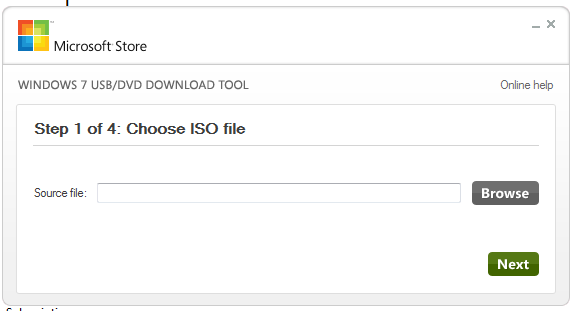
Microsoft provides free tool for Windows 7 users to burn a .iso file onto a usb drive or onto a dvd drive. This tool can be really useful when you do have a .iso file containing an operating system or something else. Just download this free tool from Microsoft website and create a bootable usb drive or dvd drive with the bootable .iso file.

Burn ISO File onto USB or a DVD Drive

Free Tool for Windows 7 Users to burn ISO File onto USB or a DVD Drive

The .iso file format is well recognised and Microsoft is even going to provide in built integration in Windows 8. The tool presented above will provide you quick and easy way to create a bootable usb drive or even a bootable dvd drive. Make sure the size of the DVD or the USB drive is bigger than the size of the .iso file and yes this free tool from microsoft will format the usb drive before copying the contents onto the usb drive and hence making it bootable.

Once you have  a bootable usb drive or a dvd drive, you might wish to have a look at the target computer’s boot order in bios settings. During installation of the operating system onto the target computer, you will have to remove the bootable usb or dvd drive so that setup in the hard disk can continue.

Change ScreenSaver in Windows 7

This tutorial displays how to Change Signed On User’s ScreenSaver on Windows 7. Windows 8 has similar way to change Screensaver for the current signed on user. Windows does not allows to easily change the Screensaver that is displayed at the Login Screen and hence you would need to use a 3rd party software utility to change the Login Screensaver.

Change Desktop Background in Windows 7

Windows 7 provides easy way to change desktop background. This free video tutorial starts from desktop , right clicks and then displays how to change desktop background in windows 7. Windows Vista has similar way to change desktop background, however on Windows XP, changing the desktop background image is little bit different. This tutorial has been recorded on Windows 7 and similar way can be followed to change desktop background on Windows 8 as well.